

How to Find Your Bitaxe IP Address (and Reach AxeOS) for Bitmern Solo
If you need to find your Bitaxe IP address — can't open AxeOS, Bitaxe not showing on the network, a .local name not working, or a bookmark that suddenly times…
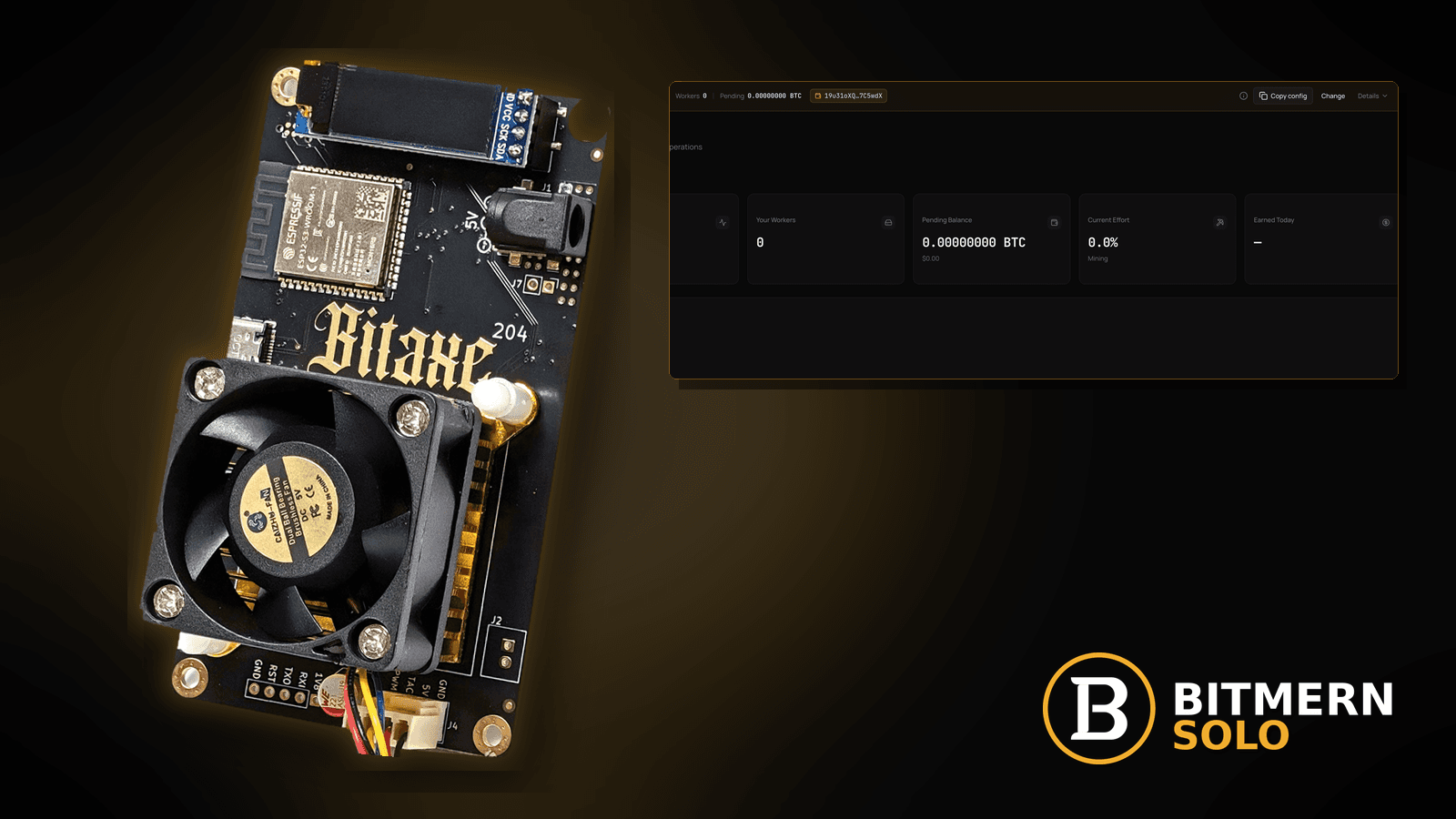
The Bitaxe is hashing — or you think it is — but you cannot open AxeOS. The address you bookmarked last month times out, a .local name you tried does nothing, and the router app lists a dozen clients with names that mean nothing. You cannot check the pool string, the worker name, or the port until you can reach the miner's web UI. This is a LAN discovery problem, not a Bitmern Solo outage.
If you need to find your Bitaxe IP address — can't open AxeOS, Bitaxe not showing on the network, a .local name not working, or a bookmark that suddenly times out — work an ordered list: read the address from the board's own screen if it has one, find the miner in your router's client list, use the elimination trick (power-cycle and watch who appears), scan the LAN with a network scanner, and only then fall back to AP-mode setup. Once you are in AxeOS, confirm BTC easy-start host btc.bitmernsolo.com with port :3132 (never treat :3102 as the Bitaxe / home default), username WALLET.worker, password x — and then lock the address with a DHCP reservation so you never hunt for it again. Current Effort is not a find guarantee.
This is the "where is my miner on the LAN" lane. Keeping the address stable afterwards: DHCP reservation / static IP. First-time pool fields: AxeOS setup for Bitmern Solo. Full bring-up order: first connection checklist. Miner reachable but missing on the pool side: workers not appearing.
Bitmern Solo is solo infrastructure: flat 1% fee on finds only, you keep 99%. Fee talk stays light here — the job is getting back into AxeOS so you can see and fix what the miner is actually sending to :3132.
Finding the IP ≠ keeping the IP ≠ first setup ≠ pool-side worker issues
Four problems get mixed up:
- Finding the Bitaxe on the LAN — you know it is powered, but you do not know which address it holds right now. That is this post.
- Keeping the address stable — the IP keeps changing after router reboots or lease renewals. Use DHCP reservation / static IP once you have found it.
- First configuration — the board has never joined your WiFi or never had pool fields saved. Use AxeOS setup for Bitmern Solo and the first connection checklist.
- Pool-side attribution — AxeOS opens fine and shows hashing, but the worker never shows on the dashboard. Use workers not appearing.
Do not invent a universal "Bitaxe default IP" or a guaranteed hostname. Home routers hand out addresses from their own ranges, firmware builds differ, and Bitmern Solo does not assign LAN addresses to your miner. Product facts that matter once you are in: BTC host btc.bitmernsolo.com, easy-start port :3132, username WALLET.worker, password x.
What "I can't find my Bitaxe" usually looks like
Common desks:
- Old bookmark times out — the router gave the miner a new lease after a reboot or outage.
- A
.localname you tried does not resolve — mDNS is unreliable across some routers, operating systems, VPN clients, and VLANs. - Router client list shows generic ESP-style or unnamed devices — you cannot tell which one is the miner.
- Phone is on guest WiFi; miner is on the main SSID — client isolation hides it (guest WiFi / AP isolation).
- Laptop is on a VPN — local traffic is routed into the tunnel and the LAN looks empty.
- Board was factory-reset or never joined your WiFi — it is not on your LAN at all; it is broadcasting its own setup network.
- Board is on a mesh satellite or IoT VLAN — different subnet from the device you are browsing on.
- Dashboard still shows the worker hashing — the miner is fine; only your path to its web UI is lost.
That last case matters: if the matching coin tab on Bitmern Solo still shows the worker with fresh accepts, nothing is on fire. You are recovering access, not rescuing a dead miner.
Ordered find-and-reach checklist
Run top to bottom. Stop as soon as AxeOS loads in a browser from a device on the same network. Then jump to step 10 to verify the pool string and step 11 to lock the address.
1. Read the address from the board itself, if it has a screen
Symptom: You are hunting in router apps while the answer may be on the miner.
Fix: Many Bitaxe boards ship with a small display that cycles status information, often including the current IP address. Watch it through a full cycle. If your board has no display, or the screen is off or blank, skip to step 2 — do not assume a value from someone else's photo.
2. Put your browsing device on the same network as the miner
Symptom: Everything you try times out, even addresses that should be right.
Fix: Join the same SSID (or wired LAN) the Bitaxe uses. Disconnect any VPN on the laptop or phone while you search. If you are on a guest or IoT network and the miner is on the main one — or the other way round — client isolation will hide it. Isolation detail: guest WiFi / AP isolation.
3. Check your router or mesh app's connected-clients list
Symptom: You do not know which client is the miner.
Fix: Open the router admin page or mesh app and find the list of connected or DHCP clients. Look for a hostname that mentions the miner, or a device whose MAC vendor shows as the WiFi chip maker. Hostnames vary by firmware build, so treat any name as a hint, not proof. Note every candidate address.
4. Use the elimination trick: power-cycle and watch who appears
Symptom: Several unnamed devices; any of them could be the Bitaxe.
Fix: With the client list open, unplug the Bitaxe. Refresh and note which entry goes offline or disappears. Plug it back in, wait for it to rejoin WiFi, and refresh again. The entry that comes back is your miner. This works on almost any router and needs no extra tools.
5. Scan the LAN with a network scanner
Symptom: Your router UI is locked, unhelpful, or managed by an ISP.
Fix: Use a scanner app on your phone or an IP scanner on a laptop on the same network. From a terminal, a ping sweep of your own subnet followed by an ARP table check also works:
nmap -sn YOUR_SUBNET/24
arp -a
Replace YOUR_SUBNET with your network's base address (shown in your laptop's network settings). Then try each unknown address in a browser — AxeOS will answer on plain http:// with its dashboard. Only scan networks you own or manage.
6. Treat .local names as a bonus, not the plan
Symptom: A .local name (for example one you saw in a forum or guide) does not load.
Fix: mDNS resolution depends on firmware, your OS, your browser, and whether the router forwards multicast between bands or VLANs. When it fails, do not assume the miner is dead. Fall back to the IP from steps 1–5. Once you have the IP, bookmark it — and then make it stable in step 11.
7. Try the address with plain http:// and no extra path
Symptom: You have the right IP but the page will not open.
Fix: Type the address directly with http:// in front and no port or path. Some browsers silently upgrade to https:// or autocomplete an old URL — clear the autocomplete suggestion and retype. If a phone browser fails, try a laptop on the same SSID.
8. Check you are not on a different subnet
Symptom: Your laptop address and the candidate miner address start with clearly different ranges.
Fix: Mesh satellites, IoT SSIDs, and some extenders hand out a separate subnet. Either join the network the miner is on, or move the miner to your main SSID during setup. Mesh fallout detail: mesh WiFi / range extenders.
9. If the board is not on your LAN at all, use its setup network
Symptom: The miner never appears in the client list, even after the elimination trick.
Fix: If WiFi credentials were wiped — after a factory reset, a firmware recovery, or an SSID/password change on your router — the board cannot join your network. Many Bitaxe firmware builds then broadcast their own setup access point. Join it from a phone or laptop and follow your board's documentation for the setup page; re-enter your WiFi details there. Reset-and-rejoin detail: factory reset and reconnect.
10. Once AxeOS loads, confirm the Bitmern Solo pool fields
Symptom: You regained access and want to be sure the miner points at the right place.
Fix: In AxeOS pool settings, confirm:
btc.bitmernsolo.com
Port:
3132
Username:
WALLET.worker
Password:
x
Never treat :3102 as the Bitaxe / home default. The wallet must be registered for that coin on Bitmern Solo. If you change anything, save and let the miner reconnect. While you are here, consider an AxeOS config backup so the next recovery is faster.
11. Lock the address so you never hunt again
Symptom: You found it today; next router reboot it moves again.
Fix: Note the miner's MAC address from AxeOS or the router client list, then create a DHCP reservation on the router so the Bitaxe always gets the same IP. Step-by-step: DHCP reservation / static IP. Bookmark that reserved address.
12. Prove the session on the matching coin tab
Symptom: AxeOS loads and looks fine; you have not checked the pool side.
Fix: Open the same coin tab on Bitmern Solo that the miner uses. Confirm the worker under WALLET.worker and fresh accepts while the board hashes. If AxeOS shows hashing but the dashboard does not, move to workers not appearing. Card reading: dashboard workers / shares / effort.
Current Effort is an ops signal — not a find guarantee.
What this post will not invent
- No universal "Bitaxe default IP" or guaranteed hostname — routers and firmware builds differ
- No claim that
:3102is the home Bitaxe default (easy-start is :3132) - No claim that Bitmern Solo assigns or can see your LAN address
- No luck formulas, dollar EV, or find-time promises from Current Effort
- No advice to open inbound ports to the internet to reach AxeOS — keep the web UI on your LAN
- No competitor fee comparisons
Fee reminder: flat 1% on finds; you keep 99%. Finding the miner on your LAN is desk hygiene, not a fee event.
Quick retest sequence after you regain access
- Open AxeOS at the IP you found, from a device on the same network with VPN off.
- Confirm BTC easy-start
btc.bitmernsolo.com+ :3132. - Confirm username
WALLET.worker, passwordx. - Note the MAC address and create a DHCP reservation.
- Bookmark the reserved IP.
- Open the matching coin tab and confirm the worker row and fresh accepts — not Current Effort as a find promise.
Common "lost Bitaxe" mistakes to avoid
- Factory-resetting because a bookmark timed out — you lose WiFi and pool fields when the miner was probably just on a new lease.
- Searching from a phone on guest WiFi — isolation hides the miner even when it is a metre away.
- Leaving the VPN on — local addresses get routed into the tunnel.
- Trusting a hostname from someone else's screenshot — firmware builds name themselves differently.
- Exposing AxeOS to the internet "to reach it remotely" — stratum is outbound only (no inbound ports); keep the UI local.
- Finding it once and not reserving it — you will be back here after the next router reboot.
- Treating
:3102as "the Bitmern port" — easy-start for Bitaxe / home BTC is:3132.
How this checklist fits the ops library
- This post — locate the Bitaxe on your LAN and get back into AxeOS.
- DHCP reservation / static IP — keep the address stable once found.
- First connection checklist — full bring-up order for a new miner.
- Workers not appearing — AxeOS fine, dashboard empty.
- Factory reset and reconnect — rejoin after a wipe.
- Guest WiFi / AP isolation — when isolation hides the miner.
Soft next step
Find the miner, open AxeOS, confirm BTC easy-start btc.bitmernsolo.com with port :3132, keep WALLET.worker with password x, reserve the IP on your router, then confirm the worker row on the matching coin tab — before you reset anything or chase luck myths.
Start mining
Start Mining — after login, open the matching coin tab and confirm workers / shares / hashrate.
FAQ
What is the default IP address of a Bitaxe?
There is no universal one on your home network. Your router assigns the address from its own range. Find it from the board's screen (if it has one), your router's client list, the power-cycle elimination trick, or a LAN scan.
Why doesn't the .local name open AxeOS?
mDNS depends on firmware, OS, browser, and router multicast handling. When it fails, use the IP address instead and reserve it with DHCP reservation.
My Bitaxe isn't in the router list at all. Now what?
It probably is not on your WiFi. If credentials were wiped or your SSID/password changed, use the board's setup network and your firmware's docs to rejoin. See factory reset and reconnect.
What BTC port should a home Bitaxe use?
:3132 on btc.bitmernsolo.com. Never treat :3102 as the Bitaxe / home default.
What username and password does Bitmern Solo expect?
Username WALLET.worker (wallet must be registered for that coin). Password exactly x.
Does Current Effort mean I am about to find a block?
No. Current Effort is an ops / attribution signal — not a find guarantee. See Current Effort explained.